Create a setlist for each performance, search and tag them for easy organization, and get ready for your next show.
Setlist List
Gather the songs for a show or rehearsal in playing order here. Create one setlist and add the scores you need, so you can open that day's music without searching through everything. Tags and sharing can wait until later.
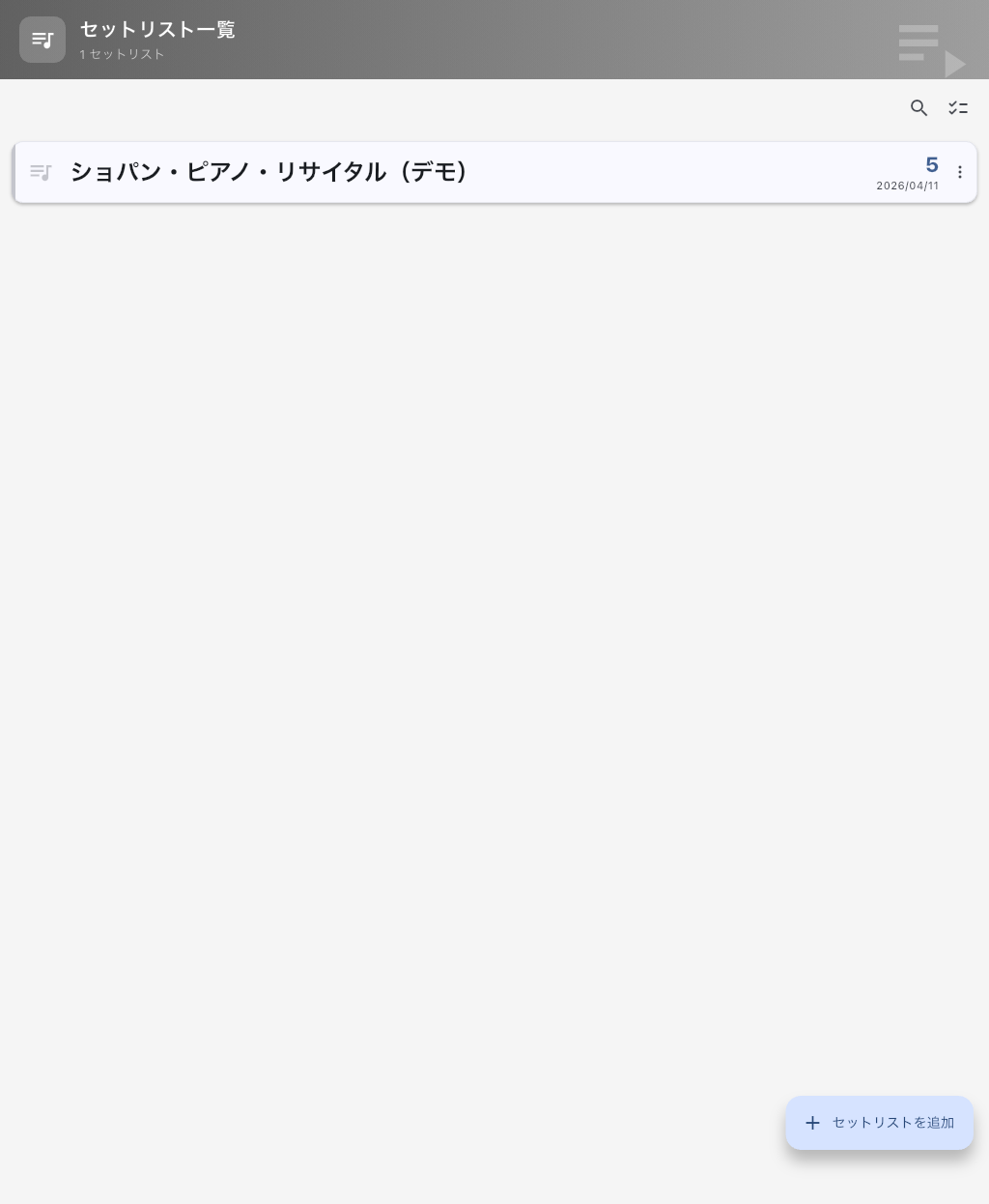
Create Your First Setlist
- Tap the add button at the bottom right and give it a recognizable name, such as "October show" or "Today's rehearsal."
- Tap the new setlist to open Setlist Detail.
- Use the add button there to add scores. See Choose Where to Add From if you are unsure which source to choose.
Next time, tap the setlist in this list to start from that running order. You do not need to organize every score and audio file first.
Find a Previous Setlist
Use the search button and enter part of its name. Filter by tags only if there are too many results. Show names, instrumentation, or dates make useful tags when they are clues you will remember. If it does not appear, shorten the search and remove tag filters. If you remember only a song title, try Global Search.
Organize Several Setlists
In selection mode, choose the setlists you want to tag together. Check the selection before opening Bulk Tag Editor. If a show is about to start, open the setlist you need first; organization can wait.
Before Deleting a Setlist
Deleting a setlist is permanent and cannot be undone. It does not go to Trash. The setlist, its entries, running order, and memos are deleted. Songs, scores, and audio stay in Library for reuse, but the deleted running order and memos cannot be brought back from this list.
If you only want to omit one song from this show, use Remove from Setlist in Setlist Detail.
To delete a whole setlist, use its menu or the delete action in selection mode. The final confirmation does not show the target names or deletion scope, so check the names and selected targets in the list before starting.
If the List Is Empty
If this is your first visit, create a setlist using the steps above. If you are looking for one you made earlier, clear the search and tag filters first. A deleted setlist cannot be restored, but you can rebuild one from songs still in Library.