Search songs or library scores you've already prepared, then reuse them in a setlist or song setting.
Choose Existing Song Or Score
Reuse a song you prepared for an earlier show without importing it again. If you want different audio or page turns with the same PDF, choose the score to make a new song instead. Decide which result you want before choosing, so you do not accidentally change the earlier show's setup.
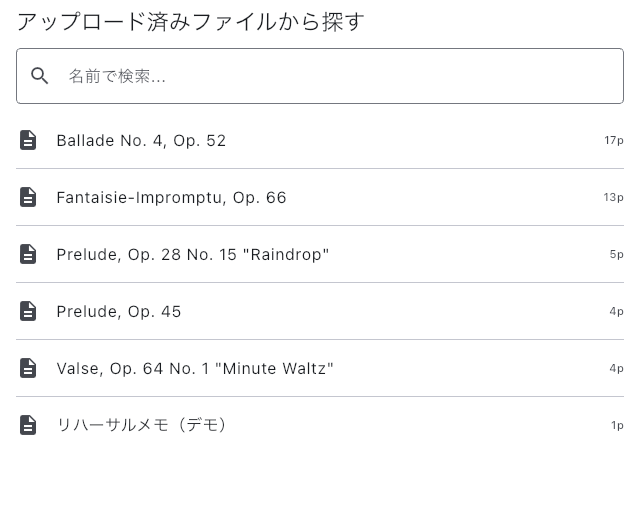
Reuse the Prepared Song
- From the add button in Setlist Detail, choose From Library → Song.
- Search by song title, source score name, or audio name, then select the song.
- Open it from the destination setlist and check that the score and audio still suit this performance.
Its page range, audio, automatic page turns, and other preparations are reused. Changing these settings also affects other setlists using the same song. To change playback for this performance alone, duplicate the song first or make a new song from the score as described below.
Prepare a Different Song with the Same Score
From the add button in Setlist Detail, choose From Library → Score. Search by score name, filter by tags if necessary, and choose the score. A new song is added. You can give it different audio and automatic page turns.
The score and annotations remain shared. Separate playback settings do not mean separate markings. If you need independent annotations too, duplicate the score itself in Library and use that score.
Replace Only the Current Song's Score
Opening score replacement from Item Settings asks you to pick a score rather than a song. Use the score name, page count, and tags to identify it. After replacement, open the score and check the page range and automatic page-turn destinations. If another setlist uses the same song, its score changes too.
If You Cannot Find It
- First shorten the search and remove tag filters.
- If the score exists but no song appears, it may not have been used to create a song yet. Choose From Library → Score, or check the Songs tab in Library.
- For a PDF or image not imported yet, return to From Files or Photos in Choose Where to Add From.
- If several songs use the same score, compare their audio names and lengths as well as their titles.