Change annotation visibility, Video Preview, the automatic page-turn control strip, display pattern, scroll direction, and auto-follow without leaving the score.
Score Viewer Display Menu
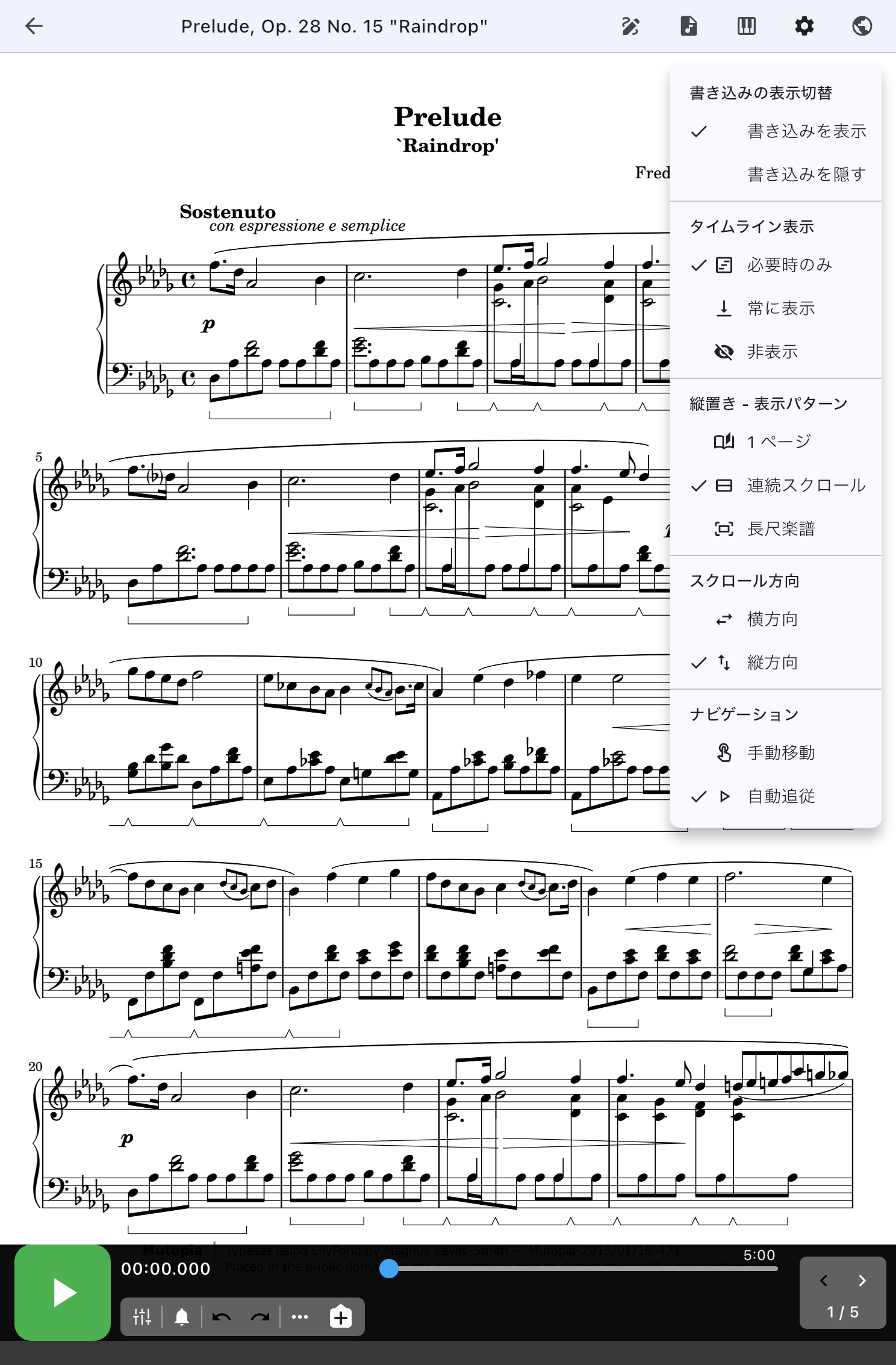
Display in the Score Viewer's top bar opens a menu for changing how the score looks without closing the performance screen. Choose whether to read one page large, see upcoming bars across a spread, or hide markings to read the notes more clearly, while keeping the song in view. If the current display is readable, you do not need to change every option.
Change This Setlist Entry or the Shared Setting
When you open from a setlist, changes are saved for this song's entry in that setlist. They remain when you reopen it, and do not change the display settings for the same song in another setlist. To undo a choice, select the previous option in this menu.
When you open directly from the library, display pattern and timeline display are saved to Global Settings and also affect other songs using those shared settings. Annotation visibility is a choice for the current viewing session.
Use Global Settings to change the shared look, or this menu and Item Settings to change one entry in a setlist.
Showing and Hiding Annotations
On PDF and image scores, use the Toggle annotations check mark to control whether markings are visible. Checked shows the markings; unchecked hides them. This changes visibility without erasing the annotations.
Clear the check mark when there are too many markings to read on stage. Check it when you want to review your markings at rehearsal, or when you move to a neighboring song and want to see them.
If annotations are hidden and you start annotating, the app shows them again so you are not writing into an invisible layer.
If Hidden Annotations Reappear
A visibility choice made while viewing directly from the library lasts for that viewing session. Starting to annotate also shows annotations again. First check whether either explains the change.
If the choice reverts when reopening the same entry in the same setlist without starting annotation, note the setlist, song, and when it reverted, and use the contact form. Hiding annotations does not delete them.
Timeline Display
The app calls the bottom control strip — the one showing audio or timer position, cues, and the playhead — the "timeline". For songs that have a timeline, you can choose Auto-hide during playback, When Needed, Always, or Hidden. The default is When Needed. These choices are not shown while a half-open fold splits the screen into upper and lower panes.
- Auto-hide during playback: Hides the top menu and timeline after five seconds without an action while playback continues. They appear again when playback stops. Choose Always if you want them to stay visible.
- When Needed: Show the controls for songs using audio or automatic page turns, and leave more room for the score otherwise.
- Always: For playing while watching cues and playback position, or checking page-turn points at rehearsal.
- Hidden: For songs that have a timeline but where you only want the score during the performance.
For more on the thinking behind it, see Timeline Settings.
Current Bar Highlight
On Fumen charts and on scores made from MusicXML or MEI, turning on the metronome marks the current bar with a subtle accent-colored tint and outline. The outline stays at the current position while paused and follows seeks and repeats. It never turns the page on its own, so nothing is drawn when the matching bar is off-screen.
The Current Bar row in the Display menu reports what is happening now: showing, metronome off, before the score starts, outside the score, preparing, or an exact reason why the highlight is unavailable. Choose that row to open Adjust Current Bar, whether the song was opened from a setlist or directly from the library.
If a count-in or an unwritten intro makes the highlight run ahead, leave playback at the score's first bar and choose Make the current position score bar 1. You can also align the score with the start of the timeline or enter the ruler number directly. Playback continues while you adjust it, and the saved alignment applies everywhere that song is opened. After a successful save, the adjustment sheet closes so you can immediately verify the corrected position on the score. If the change cannot be saved, the sheet stays open and explains the problem beside the input.
If a score contains navigation that PagePilot cannot interpret safely, the score remains visible and only the highlight becomes unavailable. A score made from MusicXML or MEI uses the bar positions saved when it was imported, so re-importing it highlights on the newer score. PDF, scores imported from photos, ChordPro, and the other score formats do not currently support the current bar highlight.
Video Preview
For a song whose sound source is a video, turn Video Preview on to monitor the current picture over the score. It is intended for performances where the audience screen is behind the performer, and for rehearsals without an external screen.
When video is also being sent to an external display, the preview lets you monitor the picture. It is also available when a song or setlist has a display image or a before/after display setting. Turning the preview off does not stop external video or audio. If you collapse it, use the video icon on the score to reopen it. Its own menu and drag gesture change its size and position.
While a half-open fold splits the screen into upper and lower panes, Video Preview is fixed in the lower pane, so this Display menu does not offer its on/off switch. Try Again appears in the lower pane only when video display fails for the current song. It makes one new display attempt. If the cause remains, such as missing media, it cannot restore the display. If another failure occurs, it appears again. It does not close the lower pane or stop audio or video on an external display.
For moving, sizing, folding, and troubleshooting the window, see Video Preview. For the audience display and connection paths, see Video on an External Display.
Display Pattern
Which options are listed depends on how the device is held. The display pattern is saved for the current orientation, so you can use 1 Page in portrait and 2 in 1 in landscape.
- 1 Page: Read one page as large as possible.
- 2 in 1: See the flow across a spread in landscape.
- 2 in 1 Half: Keep the feel of a spread while advancing half a page at a time.
- Continuous Scroll: Read long scores or text-like pages as one flow.
- Wide: Listed in landscape. Reads a tall score width-first.
- Long Score: Listed in portrait. Reads a tall score width-first.
The extra options below depend on which pattern you choose.
Scroll Direction
Patterns that support it let you choose Horizontal or Vertical. Horizontal feels closer to turning pages; vertical suits reading the score from top to bottom.
Navigation
Continuous scrolling patterns let you choose between Manual Navigation and Auto Follow.
- Manual Navigation: You scroll and move pages yourself.
- Auto Follow: The screen advances with the audio or timer position.
Auto Follow needs an automatic-page-turn timeline that connects times to score positions. It can follow audio playback or a timer without audio. If it does not behave as expected, check in Item Settings that an automatic-page-turn timeline is chosen for this song. If you use audio, check the selected track too.
Check the Display Before Playing
Hold the tablet in your performance orientation, advance once, and go back. Check that you can read the upcoming bars, the text is large enough, and your usual tap or pedal advances by the intended amount. If it does not suit the passage, choose the previous display pattern in the same menu.
If only auto-follow fails, check playback and the timeline selected for this song before changing the display pattern again.
Related Screens
- For the performance screen as a whole, see Score Viewer.
- To write the markings themselves, see Annotation Palette.
- For the finer timeline settings, see Timeline Settings.
- To use the floating video window, see Video Preview.
- To send video to the audience screen, see Video on an External Display.