The palette for the pen, highlighter, stamps, text labels, and eraser you use on a score.
Annotation Palette
The annotation palette is the toolbox for writing directly on PDF, MusicXML/MEI-derived, and image scores. Use it for rehearsal notes, fingering, dynamics, cuts, page-turn marks — anything you want to see again while performing. Start with one mark at the bar you need, then return to the reading view and check that you can find it.
If you need to change the actual text of a text page or ChordPro chart, use Text Page Editor instead of annotations.
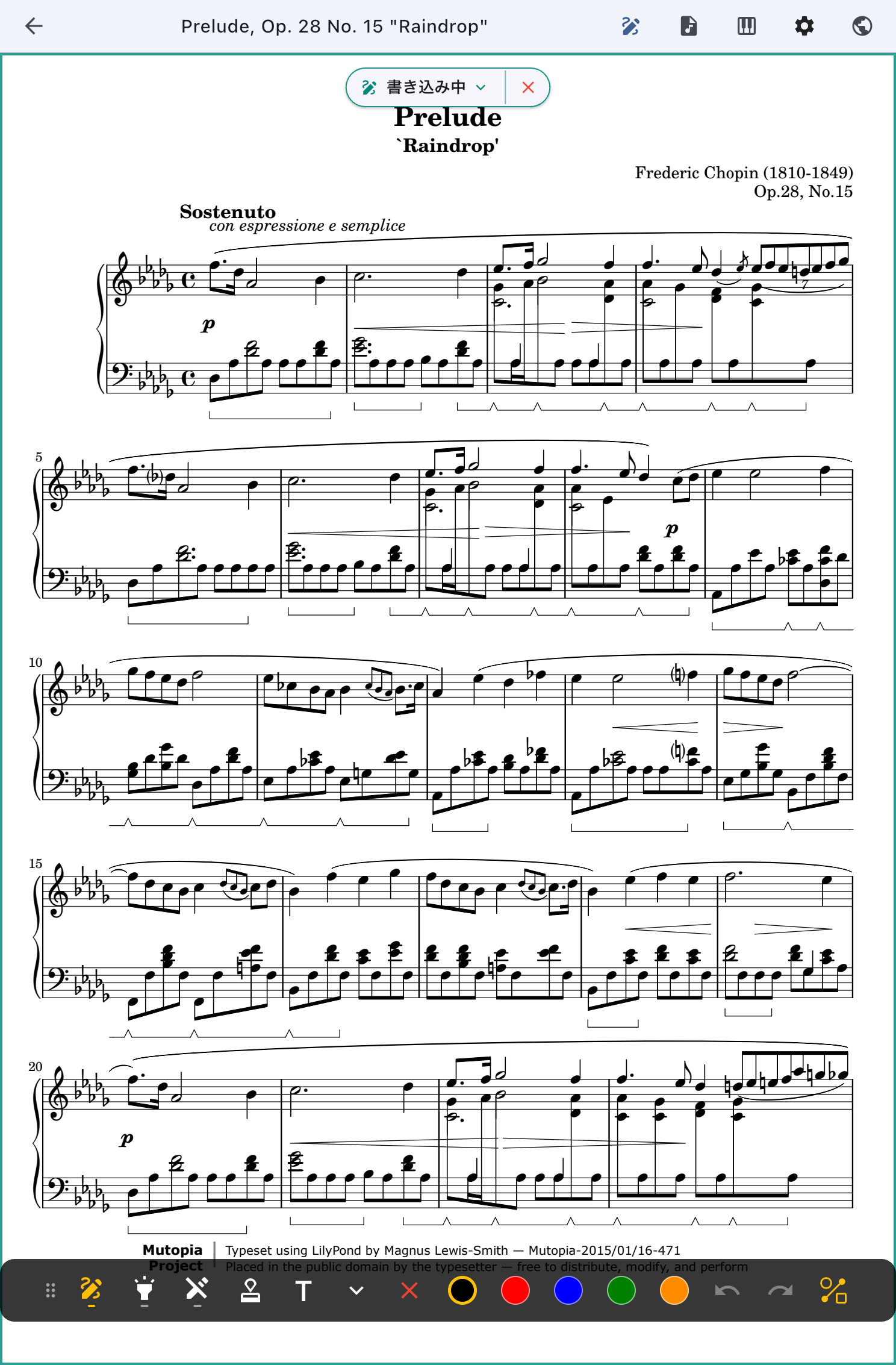
Leave a Rehearsal Note and Return to Playing
- Choose Annotate in the Score Viewer's top bar. When the palette appears, choose a tool.
- Mark the bar you need. Drag the palette aside if it covers the passage.
- Use the green check button Finish Annotating at the top when you finish. You can return to reading and turning pages.
| What you want to leave | Tool |
|---|---|
| A line around a cut or difficult passage | Pen |
| Emphasis that keeps the notes readable | Highlighter |
| Fingering, dynamics, or bowing symbols | Stamp |
| Directions such as “watch the conductor” | Text label |
| A position or color correction to an existing annotation | Select, move, and edit |
Annotations are saved to the page being marked. In 2-in-1 view, a stroke beginning on the left belongs to that page. Lift the pen before starting another stroke on the adjacent page.
If a save error appears, read When Saving or Loading Fails before leaving the page.
Pen and Highlighter
Use the pen when you want a clear line. Use the highlighter when you want to draw attention to notes or lyrics while keeping them readable.
The colors are black, red, blue, green, and orange. Long-press the pen or highlighter icon to choose the line width.
Stamps
Stamps are for quickly placing the symbols you often add to a score: fingering, pedal marks, accidentals, dynamics, bowing, ornaments, and navigation signs. Tap Stamp and Text Labels on the palette, choose Stamp, then pick a category along the top. Stamps you have used show up under Recent the next time.
- Once you choose a stamp, the palette switches to Tap the score to place and waits. The red X cancels.
- Tap the score once where you want it. The current color and the last size you used are applied automatically.
- The stamp stays selected, so adjust its position, color, size, or symbol, then confirm with the green check button.
For the next stamp, go back to the object menu and choose again.
Text Labels
Text labels are for free-form reminders, lyrics, chords, and performance notes. They can hold several lines, and the whole label can be aligned left, center, or right and set to Bold, Italic (Latin, Greek, Cyrillic), or Underline.
Open Stamp and Text Labels, choose Text Label, enter the text and formatting, then choose Place. The label appears at the center of the score you can currently see and stays selected. Use the edit icon to change the text, adjust its position, color, size, alignment, and formatting, then confirm with the green check button.
Japanese glyphs are never slanted, so they keep their intended shape. Italic (Latin, Greek, Cyrillic) can only be chosen for labels that contain those scripts.
Text is drawn with typefaces that ship with the app. You can write Japanese, Latin (including spellings such as Dvořák and Bartók), Greek, Cyrillic, Hangul, Simplified and Traditional Chinese, Thai, Devanagari, Arabic, Hebrew, and emoji. A character none of the bundled typefaces carries — Tamil, Bengali, Khmer and the like — is replaced by ?. The device's own typefaces are not used, so a score looks the same everywhere. If you need to write in one of those languages, tell the developer which one.
A label that begins in Arabic or Hebrew is laid out as a right-to-left paragraph, and a trailing ! or ? and any digits inside it are placed to match. A label that begins in Latin or Japanese stays left-to-right. Left, Center, and Right alignment always mean the side of the label you see, either way.
Selecting, Moving, and Editing Annotations
Select, Move, and Edit is its own button on the regular palette, and it picks up pen strokes, highlighter strokes, stamps, and text labels the same way. Where annotations overlap, the frontmost one is selected regardless of type. The selection gets an animated dashed frame, and the regular tools are replaced by the editing palette for that kind of annotation.
- Drag inside the frame to move it.
- Pen and highlighter strokes can be reset to any of the same five widths used when drawing.
- Stamps and text labels have a size slider that scales them without moving their center. You can also tap the point value and type a size.
- A stamp's symbol can be changed; a text label's text, alignment, Bold, Italic (Latin, Greek, Cyrillic), and Underline can be changed.
- Choosing a color recolors only the selected annotation.
- The trash button deletes the selection.
- Tap blank space or press the green check button to confirm.
While something is selected, selecting and moving annotations takes priority over the page-turn tap zones. That way you can adjust an annotation near the edge without the page moving under you.
Eraser
The eraser removes one whole annotation at a time: an entire pen or highlighter stroke, or the whole stamp or text label you touch. There is no partial erasing and no eraser width.
Drag to keep deleting whatever you touch. Where a stamp or text label overlaps a stroke, the whole object goes first; where two of the same kind overlap, the frontmost one goes. If you delete something by mistake, Undo brings it straight back.
Undo a Mistaken Annotation
Use Undo to reverse the last stroke or deletion. If you undo a mark you still need, Redo reapplies the operation.
For a shape-recognized stroke, the first Undo restores the rough hand-drawn line. A second Undo removes the line itself. Watch the result as you undo so you reverse either the cleanup or the stroke, as intended.
If there are simply too many markings to read comfortably, consider hiding them in the Display Menu before deleting them.
Shape Recognition
Draw a rough circle, oval, straight line, rectangle, or triangle with the pen or highlighter, then pause briefly without lifting. It turns into a clean shape. Handy when you have scribbled a circle around a tricky bar and want it readable. Shape recognition is always on, but it only fires when you hold still right after drawing. Lift normally and the stroke is saved exactly as you drew it.
Stylus Only
When you use an active stylus, hiding the palette can switch the score into Stylus Only. In that state the stylus writes and your fingers are free to move and operate the score.
It helps when you want to avoid stray marks from a palm or finger during a performance. To draw with your finger again, turn off the Stylus Only indicator on the palette.
Hiding Annotations
To put markings out of sight without erasing them, clear the Toggle annotations check mark in the Score Viewer Display Menu. That lets you hide them for the show and show them at rehearsal.
When Saving or Loading Fails
- "Could not save annotations. Try again." appears — Press Try Again on screen while you are still on the page where the error appeared. If the error is about the storage limit, clear out annotations you no longer need first. If you have moved to another page since, an old Try Again is not guaranteed to target the page that failed. If Try Again does nothing or the failures continue, do not assume the markings were saved — use the contact form with the score name and page, the message you saw, and what you did.
- "Failed to load annotations." appears — First check that Toggle annotations is checked in the Display Menu. If it really was a load failure, move to another page and back to load them again. If it fails again, do not conclude the annotations were deleted — tell us the score, the page, and the message you saw.
Related Screens
- For the performance screen as a whole, see Score Viewer.
- To change only what is visible, see Score Viewer Display Menu.
- If markings make the score hard to read, consider hiding them rather than deleting them.