Export all scores, audio, setlists, annotations, tags, and settings as a `.ppbk` file, then restore it when moving devices or protecting a major cleanup.
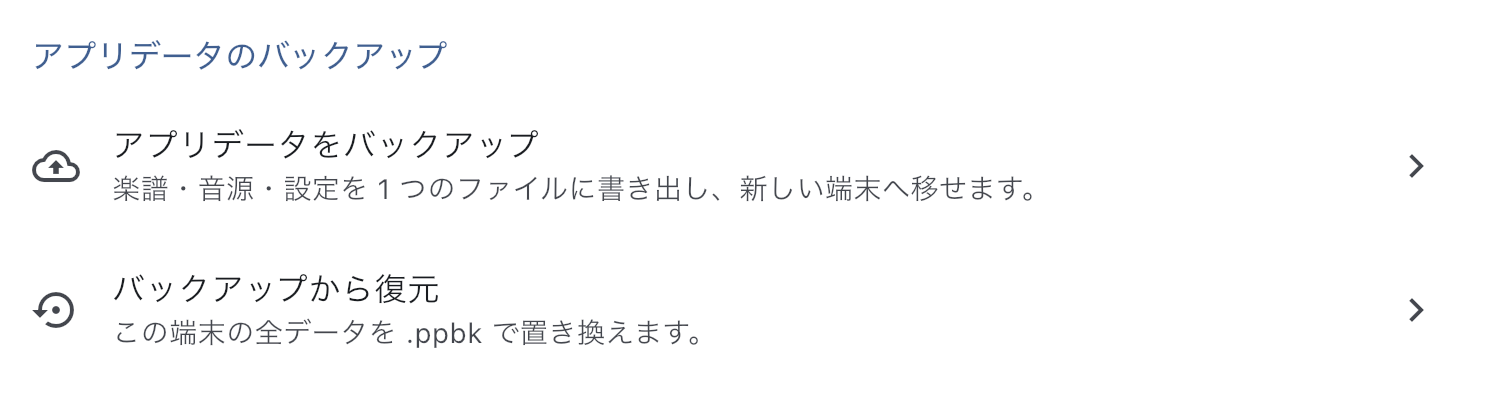
App Data Backup / Restore
Use this when you want to preserve the whole current state of PagePilot Viewer before moving to a new device or doing a major cleanup.
Scores, audio, songs, setlists, annotations, tags, and settings are exported together as one .ppbk file.
For a move, create the backup on the old device, then select that saved file and restore it on the new device. Restore replaces the destination's current data, so first back up that device too if it contains anything you want to keep.
To continue everyday editing across your own devices, use Edit on Other Devices in Global Settings. To send only one song or setlist, use Send Song or Send Setlist.
What Is Included
A backup contains the user's PagePilot Viewer data as a whole. It includes score PDFs and images, audio files, text pages, annotations, setlists, tags, and app settings so another device can reproduce the same app state.
MusicXML/MEI source files are restored too if they were saved in the app when the backup was created, allowing further transposition and updates. A backup created after permanently deleting the source restores the prepared score, but transposition and updates require selecting the same source content again. A backup that includes the source from before deletion can restore it.
Settings tied to the device or equipment, such as audio output destinations, keep the values currently chosen on the destination. Sound may not automatically come from the same speaker as before; check outputs after restoring.
The backup covers data inside the app. It does not back up the public website, the app binary, OS-level file locations, or the device's photo library.
When to Create One
- Before moving to a new device
- Before reorganizing a large score or setlist library
- Before a show, as a safety copy of the current state
- When moving the whole library between an iPad and an Android tablet (smartphone moves are supported too)
You do not need to create one during every rehearsal. The file size grows with your scores and audio, so check the destination's free space before exporting.
"Back Up App Data"
- Under App Data Backup in Global Settings, select Back Up App Data.
- Check the approximate size shown and confirm that the destination has room before creating the file.
- Save it to iCloud Drive, Google Drive, external storage, or another location from the system share sheet. For a move, choose somewhere the new device can access.
- Check that the destination's file list contains the
.ppbk. For cloud storage, wait for the transfer to finish and check that you can select the file from the new device.
Closing the share sheet alone does not confirm that the file was saved. Check the file before cleaning up or resetting the old device.
Before You Restore
Restore is not an add or merge operation.
The selected .ppbk replaces this device's scores, audio, songs, setlists, and related data.
If the destination device has data you may want to keep, create a backup from that device first. After restore, the previous state cannot be recovered from the restore operation itself.
If Edit on Other Devices is enabled, additions, changes, and deletions after restore also enter the next sync. Check the effect on your other devices before restoring.
You cannot select one song or one setlist from a backup and add it to the current data.
To add only one song, open the original data on a device or environment where it is still available, export a .ppva sharing archive from Send Song, and import it from Receive Shared Data on the destination.
If all you have left is a .ppbk, restoring that old backup here just to pull out one song is not a good idea, because it wipes whatever is on this device now. Get in touch with us if you end up in that situation.
"Restore from Backup"
Choose a .ppbk file and replace the current app data with its contents.
Scores, audio, songs, setlists, annotations, tags, and settings shared between devices are changed to match the backup.
The following destination-local state is not overwritten by values from the source device:
- The output destinations chosen for mixer A and mixer B, and the latency correction for each output device
- Device Name and Conductor Timing Correction
- Working state on this device, such as default zoom, some display choices, and the annotation tool you used last
- The data storage location chosen on Android
- Whether multi-device sync is on, where it syncs to, and what it last synced against — all of which belong to this device
Even if the confirmation says that all settings will be deleted and replaced, the settings listed above keep their current destination values. Scores and songs will still be replaced, so check your backup of anything you want to keep before approving that confirmation.
- Select Restore from Backup in Global Settings and choose the saved
.ppbk. - Read the replacement confirmation and check that you have backed up any current data you want to keep before continuing.
- Once restore is prepared, reopen the app as instructed. Android may offer Restart Now. On iPhone or iPad, fully quit the app, then open it again.
- Check that the expected setlists and songs are back and that scores open. If you use audio, test that it plays from the output chosen on this device. Also check the storage and multi-device sync destinations.
When Restore Cannot Continue
- The backup was created by a newer version of the app
- The device or destination does not have enough free space
- The
.ppbkfile is damaged or was not fully downloaded - You selected a sharing archive such as
.ppvainstead of a backup
In these cases, the app stops before replacing the current data. Use the reported reason to guide your checks of free space, the selected file's extension, and whether the download has finished. If the backup was created by a newer version of PagePilot Viewer, update the app before trying again. If the same failure continues, keep the current data and contact support with the error and app version.
Examples
When replacing a device, create the backup on the old device and restore it on the new one. When sharing one song with a bandmate, use sharing instead of backup. When creating a safety copy before a show, save it somewhere reachable later, such as cloud storage.
Related Screens
- Start from "App Data Backup" in Global Settings.
- When using a backup from the startup recovery screen, see When Android Shows the Storage Recovery Screen to compare it with the other available actions.
- To send one song, use Send Song.
- To send a whole setlist, use Send Setlist.