Choose which songs to include in a setlist share, decide whether to include annotations and tags, and send via QR code or archive file.
Send a Setlist
To give bandmates the same running order and performance preparation, tap the share button at the top right of Setlist Detail. You can send selected songs' page ranges, audio, timelines, tempo, and between-song memos together. The recipient imports them with PagePilot Viewer too.
Audio and timelines used by selected songs are included in the outgoing share. To omit them per song on the sender's side, use Send a Song. Recipients can leave out unwanted audio or timelines before importing.
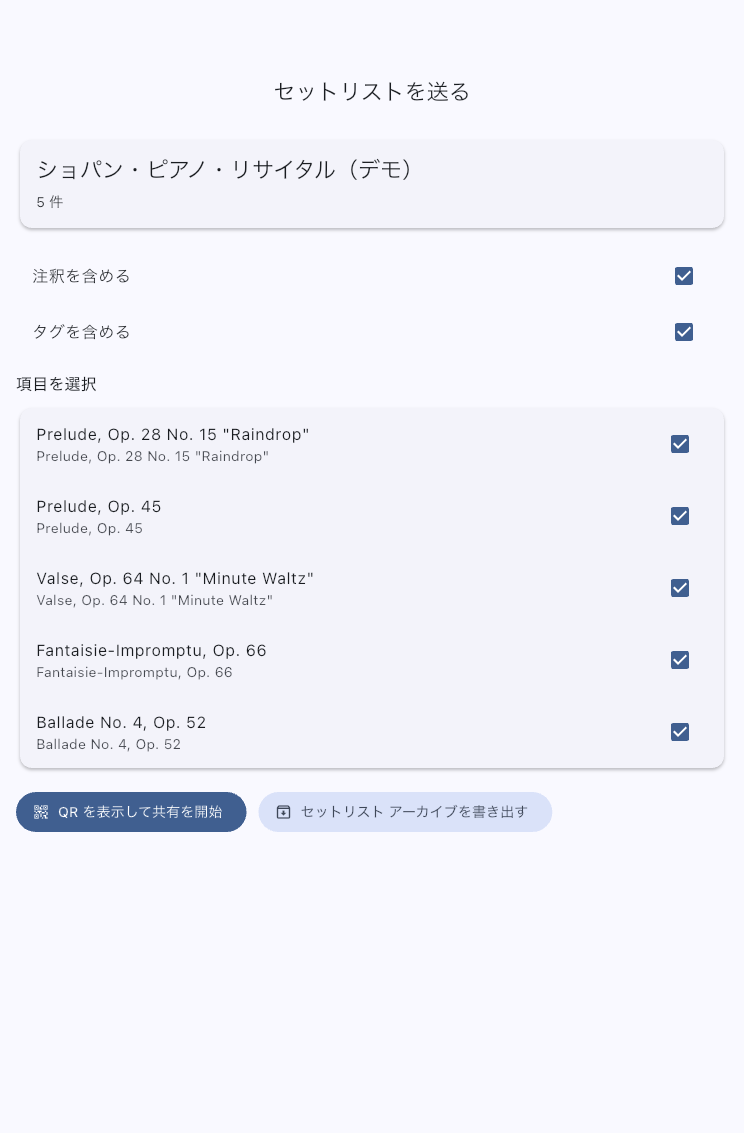
Choose Songs and the Settings They Need
- Check the songs to send on the sharing screen. You do not have to send every song.
- Decide whether to include annotations, tags and display overrides. To let the recipient select songs using the same MIDI Program Change table, choose Include MIDI Program Change assignments. This option is off by default.
- Review the song selection, then send by QR or archive.
| Choice | Include when | Leave out when |
|---|---|---|
| Annotations | Bandmates need your fingerings, cuts, or reminders | They will make their own markings |
| Tags | You want to send show-name labels and other organization | The labels are only for your own filing |
| Display overrides | A particular entry's display pattern or font size should be reproduced | The recipient should use their global display settings |
| MIDI Program Change assignments | The recipient should select this setlist's songs with the same PC numbers and row order | They use their own MIDI device or assignments. Assignments for unselected songs are not sent |
A timeline carries tempo and meter changes as well as page turns. Ask recipients to keep it selected if their performance needs those changes.
Memos When Sending Only Some Songs
Only memos immediately before or after selected songs remain. Memos adjacent only to unselected songs are not sent. Check that needed reminders such as "Change guitar" or "MC 2 min" are next to the relevant songs before sharing. You can also select several songs in Setlist Detail before opening the share screen.
Use QR with Someone Nearby
For shares containing MusicXML/MEI scores, update both the sender and recipient to the current version first. Older versions may not be able to read the share format.
- Connect both devices to the same Wi-Fi network.
- Tap Show QR and start sharing.
- The recipient opens Receive Shared Data from the top menu, scans the QR, and reviews and imports the received contents.
- Ask them to open the imported setlist and check its order and needed memos.
Ending the share session makes its QR unusable. Export a file if you want to hand it over later.
Send an Archive
Use Export Setlist Archive to create a .ppva file and send it through AirDrop, cloud storage, or another method. The recipient imports it from Archive in Receive Shared Data.
This shares the selected setlist. It is not a full app backup (.ppbk).
Check the Received Setup
Ask the recipient to check the running order, page ranges, audio, important page turns, and annotations on their device. If you included MIDI Program Change assignments, also check that duplicate rows and their order, and the songs selected by those numbers, are intended in the imported setlist. The song-selection receive switch and this device's output destinations and channels are not sent, so recipients should set them on their device if needed. Screen size and the settings they selected can change how the scores look.
Current .ppva sharing does not send Voice Count's enabled state, A/B/C bar selections, or voice type. Even with timelines or display settings included, Voice Count is off on receipt, bar selections are blank, and the voice returns to its default. The recipient must configure it again for songs that use it.
When an included song timeline contains MIDI operations, its start actions, cues, and equipment and action definitions are sent too. These are separate from incoming PC song-selection assignments. The recipient sets destinations and channels on their tablet. See MIDI operations in a shared song.
If Something Goes Wrong
- QR connection fails: Check the same Wi-Fi network, Local Network permission, and that the sender is still waiting. If this is difficult to resolve at the venue, switch to an archive.
- The recipient does not need the audio: They can deselect it in the receive preview. If you need to exclude it before sending, share the songs individually instead.
- Some memos are missing: Check whether only some songs were selected at send or receive time. Only memos next to those selected songs remain.
See Send a Song for a single song and Receive Shared Data for the recipient's choices.