Check and adjust where audio, metronome, Voice, and keyboard sound are played, and how loudly each source is mixed.
Mixer Settings
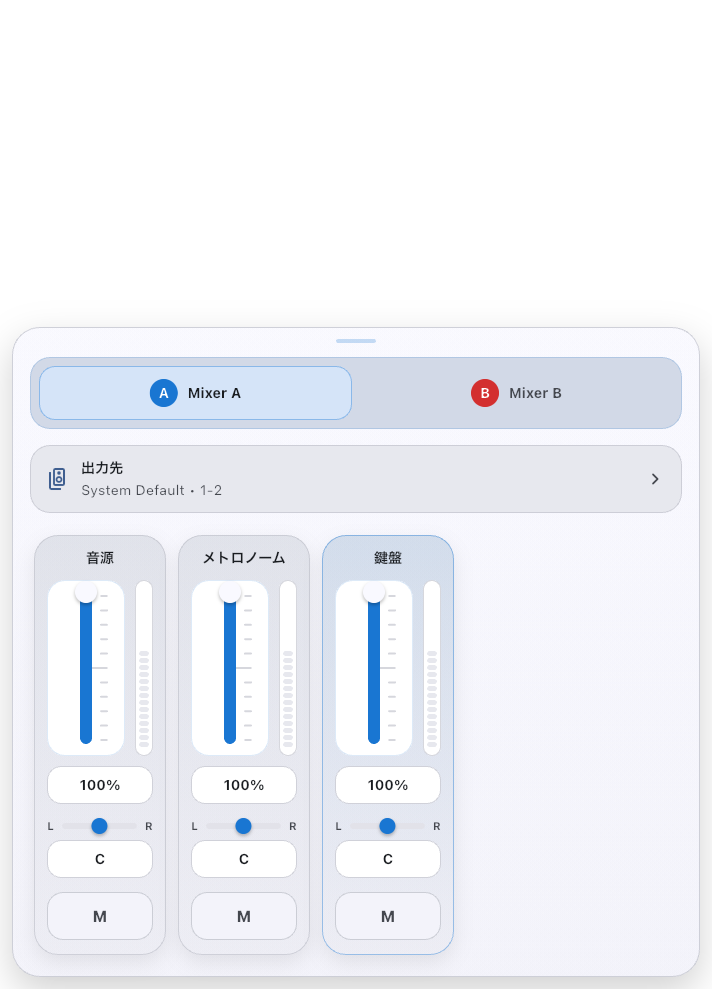
Mixer Settings is where you decide where sound comes from and how audio, metronome, Voice, and keyboard sound are balanced. Start here when there is no sound, sound comes from an unexpected speaker, or you want to send only the click to a separate output.
If you only use PagePilot to display scores, or sound is already coming from the built-in speaker as expected, you can usually leave this alone.
First Things to Know
Mixer A and mixer B let you choose separate destinations and balances. Use them to send accompaniment to the audience and the click or spoken count to the performers.
By default, mixer A uses the normal output destination, and mixer B is set to No Device.
No Device means "this mixer is not being used," so it is normal when you are not using B.
Common setups include:
- Mixer A: send audio and keyboard sound to the built-in speaker or main audio interface
- Mixer B: send only the metronome to another output channel (such as stereo pair 3-4) as a click feed
- Mixer B: leave it on
No Devicebecause you do not need a second output
Mixer A/B is not only a "show/practice preset" switch. It can also send different mixes to different outputs at the same time. The same physical output and stereo pair cannot be used by both A and B. If a device is shown as "Assigned to Mixer A" or similar, the other mixer is already using that output.
Outputs that cannot be used together are omitted. A saved destination that becomes unavailable remains visible with a reason.
- iPad / iPhone: You can choose separate stereo pairs on one audio interface. When detected, USB and HDMI can also be combined, as can USB, HDMI, or line output with wired headphones. Independent simultaneous output to AirPods or AirPlay and another device is not supported.
- Android: For two stereo feeds, choose separate stereo pairs on one audio interface. Assigning different physical devices to A and B is currently unsupported.
If you cannot select a destination while changing both assignments, set one mixer to No Device first, then choose the new assignments.
If a connection change makes the saved combination unavailable, both outputs are silenced and a warning appears. Your assignments are kept; check the connections or choose a supported combination.
Start with One Output and Set the Balance
For practice where the audience and performers do not need separate feeds, start with mixer A alone.
- In Global Settings, open Mixer A under Audio & Video Output.
- Check that Output Route shows the speaker or audio interface you want to use. To change it, open Output Route and tap the destination matching the channels you have connected. This saves the choice and closes the picker.
- Play the song and move the Playback Audio fader up or down until the accompaniment leaves room for your playing. If you need the click, turn the metronome on in the Score Viewer, then unmute Metronome in the mixer and set an audible level.
- Listen through the speaker or headphones you will actually use. If you can hear the sound, a stationary level meter alone is no reason to redo the settings.
A fader is the volume control you move up or down. The output destination, volume, pan, and mute settings are kept for next time. Leave B on No Device if you do not need it.
Send Accompaniment to the Audience and the Click Only to Performers
This keeps the click or practice count out of the audience speakers and sends it only to the performers' headphones. The example uses one four-channel audio interface, with outputs 1-2 connected to the PA and 3-4 to the performers' monitor. The interface must provide two independent output pairs. The built-in speaker alone cannot split these feeds.
- Connect the audio interface. Stop playback, then choose its outputs 1-2 in mixer A's Output Route.
- Open mixer B and choose outputs 3-4 on the same interface. If they cannot be selected, check the pair used by the other mixer and the number of channels currently available on the interface.
- On A, enable Playback Audio and mute Metronome and Voice. Enable Keyboard only if the audience should hear it.
- On B, unmute Metronome and set its level. For a click-only feed, mute Playback Audio, Voice, and Keyboard. If you also want the spoken count, unmute Voice and enable the song's Voice Count.
- Turn the metronome on in the Score Viewer, play the song, and listen to both outputs: the PA should have no click, while the performers' monitor should carry it. If you use Voice Count, check the specified bars to confirm the voice is heard only on the performers' side too.
When you no longer need separate feeds, return B's Output Route to No Device. Check the mute settings for sounds you want on A too. Unplugging a cable alone does not remove the saved assignments.
If There Is No Sound
If sound suddenly cuts out during playback, first use "When a Call or Notification Interrupts Playback or Sound" below to tell whether playback itself stopped or only the sound dropped out. If there is no sound from the start, or the sound does not come back after the interruption is over, check routing (which sound goes to which device) and volume. This order usually narrows down the cause fastest.
- Confirm that the source you want to hear is actually active. For audio, check that playback is running. For the metronome, check that it is on. For Voice, check that Voice Count is enabled for the song and that playback is within a target bar. For the keyboard, check that MIDI input or the on-screen keyboard is responding.
- Check that the source is not muted and that its volume is not at 0%.
- Check that the selected mixer's output destination is not
No Device. IfNo Deviceis not intentional, select a device. - Look for a yellow warning or "Not connected" on the output route. If it appears, the previously selected audio interface or Bluetooth device is not currently available.
- Check the stereo pair on the audio interface. If your cable is connected to 1-2 but the mixer is set to 3-4, you will not hear it from the expected output.
- Check the device volume, audio interface knobs, cables, and headphones or earbuds.
Output latency calibration aligns what you hear with what you see on screen. It does not fix a completely silent output, so check the output destination, mute, and volume in this sheet first.
When a Call or Notification Interrupts Playback or Sound
If the OS tells PagePilot that audio has been interrupted while you are playing along with audio or the metronome, a device used standalone and a device following a Conductor behave differently. This also applies when you play along to the metronome alone, without an audio file. This section describes timeline playback in the Score Viewer. Previewing audio from an audio list or a settings screen is a separate case.
The type of event alone, such as a phone call, an alarm, or another app playing sound, does not decide what happens. Depending on the OS, how the call is shown, and the other app, the sounds may simply overlap, only the volume may drop, or PagePilot's use of audio may be interrupted.
Playback Pauses (Standalone or Parent Viewer)
When you use PagePilot standalone, starting and stopping playback yourself, playback pauses at the current position as soon as the audio interruption arrives. PagePilot does not wait for a few seconds of silence before deciding. Even if Return to Start on Stop is on, this pause does not rewind.
PagePilot shows "Playback paused due to an audio interruption." once. If the interruption arrives while the output is still getting ready, or while a Local Conductor is waiting to start together with its child Viewers, the start is cancelled, and playback does not begin on its own later.
With Local Conductor, which keeps Viewers in sync with each other, the device that sends the song number and in-song position is called the parent Viewer. If a parent Viewer that is using sound pauses, that pause is passed on to the child Viewers too. If the parent uses neither audio nor the metronome and only sends the position, audio interruptions do not pause it.
When the call or the other app's playback ends, a standalone device or parent Viewer does not resume automatically. When you are ready to continue, check the position and start playback yourself. If the OS still does not let PagePilot use audio, playback stays stopped even when you press play.
Only Your Sound Drops Out and the Song Keeps Going (Child Viewer)
The device that receives the song number and in-song position from a Conductor and follows along is called the child Viewer. Whether it follows a Local Conductor or an external PagePilot Conductor linked to a DAW, if the audio interruption happens only on this device, PagePilot does not stop the overall progression; it interrupts only this device's sound. A child's interruption is never passed on to the parent or other devices as a stop.
After the OS reports that audio can be used again and the Conductor sends its next playback state and position, the sound resumes at the current position if the Conductor is playing. The metronome also restarts from the current beat; the beats you did not hear are not played afterward. If the Conductor has already stopped, the sound stays off. Child Viewers do not show the "Playback paused due to an audio interruption." message described above.
On Android, after another app takes over audio, the OS may never report that audio can be used again. In that case the child's sound may not come back even while the parent keeps playing. PagePilot does not keep grabbing audio back from the other app. When the parent stops and starts playback again, PagePilot tries once to get audio; if it cannot, there is no sound. Do not stop the whole performance just to bring one child's sound back.
Differences Between iPadOS / iOS and Android
- iPadOS / iOS: For incoming calls shown as a banner, PagePilot asks the OS to let playback continue until you answer. This does not guarantee protection from full-screen calls, calls after you answer, or every alarm or notification. When an audio interruption does happen, the standalone / parent or child behavior above applies.
- Android: For short interruptions where the OS allows playback to continue at a lower volume, PagePilot keeps the playback position and tempo moving and temporarily lowers its sound. This applies not only to Playback Audio but also to Metronome, Voice, and Keyboard. When the interruption ends, the volume returns to where it was; the mixer volume and mute settings you saved do not change. If the OS asks to interrupt audio, even for a short notification, the standalone / parent or child behavior above applies instead of the lower volume.
Both are there to reduce interruptions, not to guarantee that sound never cuts out during a show. Test in advance with the same device and output equipment you will use for the show.
Before You Decide It Was an Interruption
- "Playback paused due to an audio interruption." appeared: playback stopped because audio was interrupted, not because of a volume or output latency problem. The message alone cannot tell you which app or call caused it.
- A child Viewer's screen keeps moving but the sound is gone: besides an audio interruption, the output device may have disconnected, or a source may be muted. Do not conclude from silence alone that the Conductor connection is bad or that audio was interrupted.
- The mixer shows a yellow warning or "Not connected": check the output device. PagePilot does not switch to the built-in speaker on its own when the device disconnects; see "When You Unplug the Audio Interface" below.
- You silenced it on purpose, or the song reached a rest: setting an unused mixer to
No Device, muting, and rests are not audio interruptions. PagePilot does not measure actual silence and stop playback because of it. With ordinary audio or output problems, too, playback can keep going without any sound.
If you cannot narrow down the cause, contact support with your device and OS, the app version, whether the device was standalone, the parent, or a child, the message shown, any call or other app activity just before, and the output device.
Choosing an Output Destination
On iPad / iPhone, stop playback and open Output Route to check combinations of connected wired devices. This extra check does not run during playback, to avoid interrupting sound. Closing the list without selecting anything keeps your saved destinations.
In "Output Route," choose one destination such as "Device name : 1-2." Each option combines the device and its output channels. The numbers 1-2 or 3-4 identify a left/right pair of channels (a stereo pair). Initially, PagePilot uses the output chosen by your device. The picker shows the actual device name; tapping a destination saves the device and its channels, then closes the picker.
For example, with one four-channel audio interface connected and A using its channels 1-2, B can select No Device or the same interface's channels 3-4. Channels 1-2 remain visible in a dimmed, disabled row labeled with the mixer using them.
Other outputs that cannot be used alongside the other mixer are omitted. If a saved destination becomes unavailable, its selection and reason remain visible. Reconnect it or choose another destination.
On iPad / iPhone, stop playback and open Output Route to check combinations of connected wired devices. This extra check does not run during playback, to avoid interrupting sound. Closing the list without selecting anything keeps your saved destinations.
Usually, there is no need to change the sample rate. For a new device, PagePilot prefers 48 kHz where available. An existing rate for the same device is retained. To change it, use the small "Change Sample Rate" link in the mixer. Tap a rate to save and close. The change applies to both mixers when they use the same device.
After selecting an output, you may briefly see a progress indicator on the right of the output row. PagePilot is verifying that the selected device and sample rate can actually be used for playback. If the route cannot be applied, PagePilot restores the previous setting or shows the actual sample rate being used.
Output sample rate is capped at 96 kHz. This prioritizes stable performance during a show instead of pushing the device with an unnecessarily high output rate. It is not a limit on the source material. You can load audio above 96 kHz; PagePilot converts it to the selected output sample rate for playback.
When You Unplug the Audio Interface
If you unplug the cable while outputting to an audio interface, audio does not automatically switch to the built-in speaker. PagePilot waits for the same device to reconnect, and routing returns once you plug it back in.
On iPad / iPhone, a USB audio interface keeps its saved routing when moved to another hub port or replaced with a spare of the same product, provided PagePilot can identify its outputs. If more than one device could match, choose the output again.
This prevents accidentally playing sound from the built-in speaker during a show. While the output device is missing, a yellow warning triangle appears on the mixer icon and the output row. To play from the built-in speaker, select a different output device.
Where the Hardware Volume Buttons Work, and Where They Do Not
When you output to the built-in speaker or a simple single-stereo output, the device's hardware volume buttons change the volume directly.
When you output to a pair other than 1-2, such as 3-4 on an audio interface, or split sound across multiple outputs at once, the hardware volume buttons have no effect. In that case, adjust volume with the knob on the audio interface or with each source's volume in this sheet.
Volume, Pan, and Mute per Source
Each mixer has four source strips: Playback Audio, Metronome, Voice, and Keyboard. Each source has its own volume, pan, and mute settings.
- Volume runs from 0% to 100%. Check this first when there is no sound.
- Pan moves the source left or right. Leave it centered unless you have a specific reason to change it.
- Mute silences only that source. It does not change the output destination itself.
Within the fader's height, drag up or down anywhere across the source strip, including its side margins and level meter, to adjust volume. You do not need to grab the knob precisely.
Volume, pan, and mute are adjustable for all four sources on both iOS and Android.
Voice controls only the spoken Voice Count. The click can still be audible while the Voice strip is muted or set to 0%. If the click works but the spoken count does not, check this strip as well as the song's Voice Count switch and target bars.
Treat the level meters as a rough guide. The Voice meter always sits at 0%, and on Android the Playback Audio and Metronome meters can too, even while you can hear them. Judge by the sound itself, not by the meter. Volume, pan, and mute all still work.
Turning a source down can still leave it audible. Mute sounds the audience should not hear, then listen to the actual outputs using the steps in "Send Accompaniment to the Audience and the Click Only to Performers" above.
When the Click and Screen Feel Out of Sync
Bluetooth devices and external audio interfaces can delay sound before it reaches your ears, which can make the click feel out of sync with the on-screen ball or timeline. In that case, use "Calibrate Output Latency" in this sheet or Output Device Latency from Global Settings.
Calibration is not available during playback. Stop timeline playback or the metronome before opening it.
If You Get Stuck
- If B is set to
No Deviceand you are not using B, nothing is wrong. - No sound at all, sound from the wrong speaker, Voice Count missing while the click plays — for any of these, work down "If There Is No Sound" above.
- If the click and screen differ by the same amount across songs, try Output Device Latency. If only one song's audio starts off the beat, check that song's Audio Start Time.
Related Screens
- Access this sheet from Global Settings.
- Adjust click-to-screen mismatch in Output Device Latency.
- It helps to try playback in Score Viewer while adjusting settings here.