When audio reaches your ears later than the on-screen motion, save a correction per output device so visual timing matches what you hear.
Output Device Latency
Bluetooth speakers, earbuds, and audio interfaces can all add a small delay before sound actually reaches your ears. When that delay is noticeable, the click may be correct but the ball, timeline, or other visual feedback can feel slightly early.
When you rely on the visible beat while playing, a screen that leads the click makes it hard to choose which one to follow. This setting adjusts your screen for the delay before sound reaches you, and remembers the correction for each output device. If sound and screen already line up with your equipment, leave it at 0. It does not play the source earlier or remove the delay in the equipment itself.
During performance setup, open Output settings → Calibrate Output Latency from Mixer Settings. To review saved corrections later, use the Audio & Video Output section in Global Settings.
If only one song starts at the wrong moment, this is not the setting to change — adjust that song's "Audio Start Time" instead. Use output device latency when the sound lags the screen on every song that plays through the same piece of gear.
If what drifts is the picture on an external display rather than your own screen, that is a different setting: Video Device Latency. This page aligns your own screen with the sound; that one aligns the venue screen's picture with the sound.
When to Use It
- The metronome click does not line up with the bouncing ball landing
- Timeline movement or auto-follow feels earlier than the sound you hear
- The mismatch appeared after switching to Bluetooth or an external audio interface
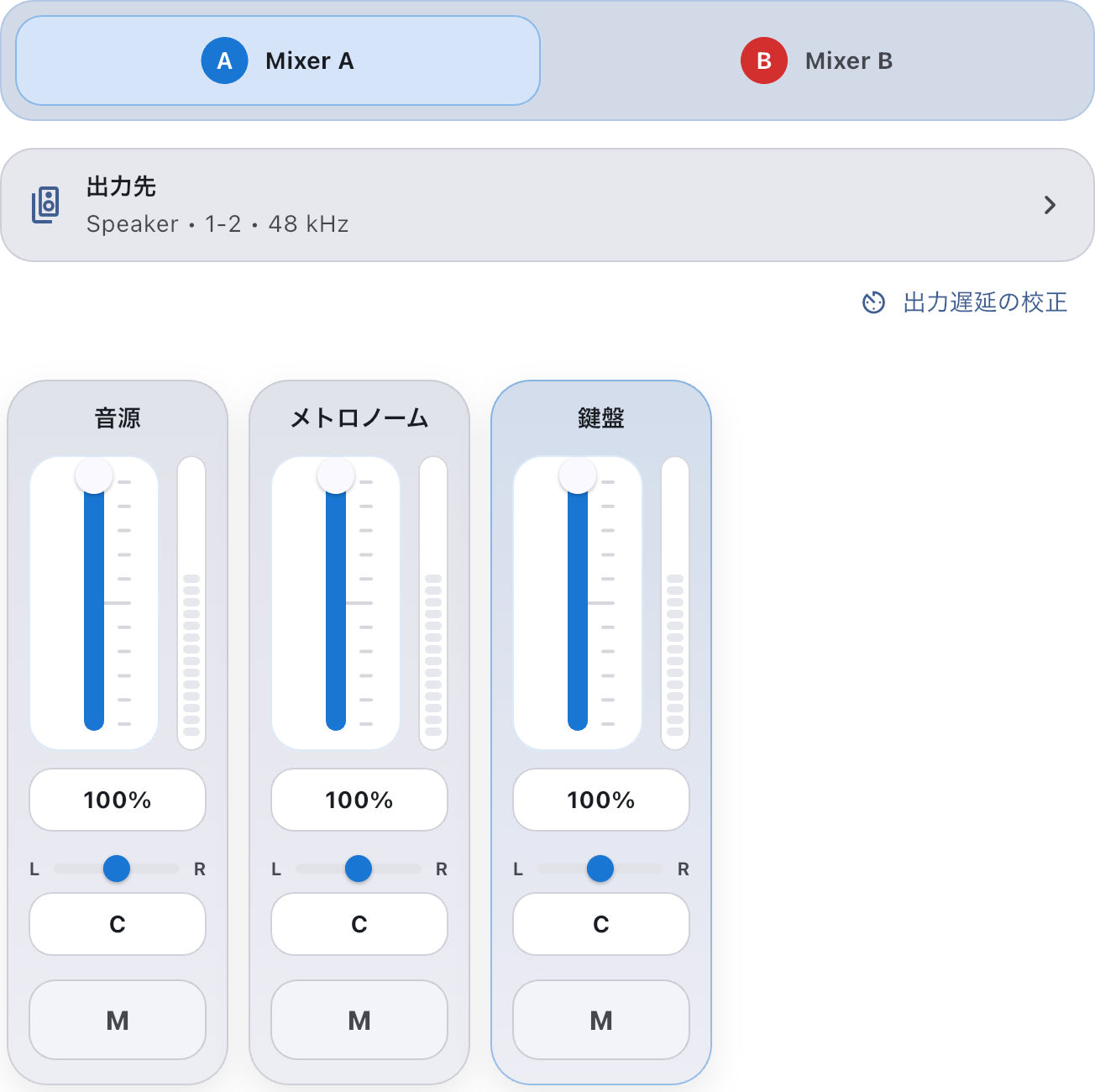
If you want to change volume, pan, or the output destination itself, use Mixer Settings. Latency compensation does not choose where sound comes from; it aligns the timing between what you hear and what you see.
Match the Visible Beat to the Click on Your Usual Output
Connect the speaker or headphones you will use for the performance first. You need audible sound to make this adjustment.
- Stop timeline playback or the metronome, then choose the output you want to adjust in Mixer Settings.
- Check the destination list in Output settings, then open Calibrate Output Latency. In Stereo, choose the mixer here if both are available. In Dual mono, calibration always plays through the left output (Mixer A). Check that the device name shown matches your equipment.
- Confirm that the click comes from that equipment. The calibration click follows Playback Audio level, pan, and mute on the mixer being calibrated. If it is silent, go back without saving and check the connection, route, and Playback Audio settings.
- Move the slider to match the heard click to the ball landing and the screen flash. Compare several beats in a row.
- Press Save when they line up. The correction is kept for that device name and used next time too.
- Return to the score and play the song or metronome through the same output. Check that the ball or playback position matches the beat you hear.
You do not need to repeat this while the same equipment remains aligned. Review it when you replace equipment, or when a connection change makes the mismatch noticeable.
How to Open It
- From Global Settings, open "Audio device latency compensation" in the Audio & Video Output section
- From Mixer Settings, open Output settings → Calibrate Output Latency
The Global Settings entry lets you review, edit, or remove saved corrections. The mixer entry calibrates an output device currently in use.
"Calibrate Output Latency"
Adjusts the mismatch between the click and screen for a connected device listed in Output settings. In Stereo, choose the target when opening calibration if several mixers are available; a single target needs no chooser. Dual mono always uses the left output (Mixer A). Calibration is not available during playback. Stop timeline playback or the metronome before opening it. The click follows Playback Audio. It is silent if that strip is muted or at 0%. Changing the Metronome level does not change the calibration click.
During calibration, listen to the calibration click rather than following the song. Stop at a break in rehearsal and restart the song after you have finished aligning them.
The click goes only to the output of the mixer being calibrated. It stays silent if the device is disconnected or cannot be identified uniquely. In Dual mono, calibration always uses the left output (Mixer A). It never switches automatically to the right output (Mixer B). The screen shows a waiting message while the connection or output settings are being resolved.
If Headphones on the Right Do Not Play the Calibration Click
Even when the drummer uses the right feed in Dual mono, audio calibration plays on the left. Raising B's Metronome level or selecting B in the mixer does not move calibration to the right.
- Close calibration without saving and turn down the connected equipment.
- Use a speaker or monitor where you can hear the left (A) signal. Check that A's destination is available and Playback Audio is neither muted nor at 0%.
- Reopen calibration from Output settings and adjust it while listening to the click. Before performing again, restore any level or mute settings you temporarily changed for calibration.
Corrections are stored per output device name, not per side or mixer. This does not automatically measure separate delays for the external PA and headphones on each side. If you change the connected equipment or wiring, check the actual sound against the tablet screen again.
Reviewing Saved Corrections
The saved correction list shows a millisecond value for each output device name. Tap a value to edit it directly. To remove a correction, swipe that device's row left or right to delete it. This does not remove the output equipment or any audio files.
When you switch to a new pair of earbuds or a different audio interface, calibrate that device instead of reusing an old value.
If You Get Stuck
- If you are unsure what you changed, reset the value to 0.
- If it is hard to tell which direction is off, move the slider farther than needed first, then come back.
- If the calibration click is silent, do not save a value. Work through If There Is No Sound in Mixer Settings, then try again.
- If only one song is off, keep the equipment correction and check that song's Audio Start Time. Changing a correction used across songs also affects those that were already aligned.